Showing posts with label Apps. Show all posts

Sunday, 24 March 2013

How To Install Games./Apps In Android ?

Leave a Comment

Android Is Getting Famous DaY By DaY!
Android has a wide variety of Apps And Games
even i am using android its just awesome!!!

There Are 2 Kind Of Applications

1)Free Applications
2)Paid Applications

There Are 2 Kind Of Games

1)Free Games
2)Paid Games

Free Applications Are Good and usefull

Paid Applications Are just awesome and they are normally used for system purpose

Free Games Are just awesome good GFX FPS

paid games are just awesome in GFX but they are huge in size 
you can buy them using your Credit Card
(MasterCard,Discovers,Amex,Visa)
Best Android Devices For Games ?

Ans-
With HTC
htc desire S
htc One X
htc Desire X
htc Sensation XL
htc One S

With Samsung
Samsung Galaxy S Duos S7562
Samsung Galaxy SL I9003
Samsung Galaxy SIII mini I8190
Samsung Galaxy Grand I9082

With Qmobile
Qmobile A7
Qmobile A8
Qmobile A9
Qmobile A10
Qmobile A11
Qmobile A12

With Sony
Sony All Xperia Models can run android Games/Apps

With Huawei
Ascend G300 
Huawei U8860
Huawei Ascend P1 
Huawei Ascend W1 
Huawei Ascend Mate 
Huawei Ascend D2 
Huawei Ascend D1

How To Install Games/Apps In Android Device ?

                                                                              Ans-
Well It's Not Very Difficult To Install Games/Apps In Android Device
All You Need Is Good Android Device...
See The List Above

Best Android Games Downloading Website ?
Ans-
Google Play 
Yes , Google Play Awesome Website For Android Games And Apps

You need to make a account on google (gmail)
after your account is created go to 
http://www.play.google.com
and login there (you'll be already logged in)
now from your android device , goto 
http://www.play.google.com
and sign in using your gmail's account
 now browse play.google.com and open and game than enjoy downloading and playing :D

you can download games in your Android Device through your PC
Switch On Your Wi-fi(In Your Android Device) \
than goto play.google.com from your PC
click on any game and it will start downloading in your android device but you must be logged in, in your android device!

Read More...

Friday, 8 March 2013

avast! Anti-Virus For Android

Leave a Comment
avast! Mobile Security
Remote cell phone tracker/locator and malware protection (with USSD blocker).
Highly recommended by Android authorities, AV-Test, PCAdvisor, Techworld, and now over 10 million users worldwide!
REVIEWS
AndroidAuthority: “The best just got better… nothing comes close”
Android and Me: “The best anti-theft solution on the market”
AndroidPolice: “basically anything you would want should your device get lost or stolen”
Droid-Life: “it doesn’t get much more extensive than this”
PCAdvisor: “your first port of call when looking for a security product”

MAIN FEATURES

• Antivirus: Scans installed apps and memory card content on demand and new apps upon first use.
• Privacy Report: Scans and displays access rights and intents of installed apps.
• Anti-Theft (hidden component): Gives you remote control via SMS or Web (cell phone tracking, activate siren, memory wipe, etc.).
• Network Meter: Measures incoming/outgoing data transfers.
• Web Shield: Scans each URL that loads and warns you if it’s malware-infected. Includes USSD blocker.
• Widget: Gives you control of the app from your Android desktop.
• Web Interface: Provides remote control of anti-theft features (cell phone lock, GPS tracking, memory wipe, etc.).
• SiteCorrect: Automatically fixes mistyped URLs.
• Shield Control: Advanced settings for app, web, and messages scanning.
• UI Design: Great readability on Android cell phones and tablets.
• SMS/Call Filtering: Filters out particular contacts that you select.
• App Manager: Lists apps and their sizes (MB), CPU load, memory used, etc.
• Battery Save: Runs only when performing tasks.
• Firewall (works on rooted phones only): Serves as gatekeeper for network
traffic.
• Available Languages: Catalan, Czech, Dutch, English, French, German, Hungarian, Chinese (Simplified), Chinese (Traditional), Italian, Japanese, Korean, Polish, Portuguese, Russian, Spanish.
Learn more: http://www.avast.com/free-mobile-security

Best Feature!
Remotely control your phone after install at: https://my.avast.com

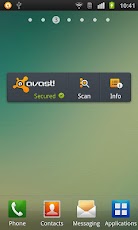
Some Screen Shots!

 
Read More...

MX Player For Android DownloaD

Leave a Comment
 
MX Player For Android
 
MX Player - The best way to enjoy your movies.
a) HARDWARE ACCELERATION - Hardware acceleration can be applied to more videos with the help of new H/W decoder.

b) MULTI-CORE DECODING - MX Player is the first Android video player which supports multi-core decoding. Test result proved that dual-core device’s performance is better up to 70% than that of single-core devices.
c) PINCH TO ZOOM - Easily zoom in and out by pinching and swiping across the screen.
d) SUBTITLE SCROLL - Subtitles can be scrolled to move back and forth faster.
e) KIDS LOCK - Keep your kids entertained without having to worry about them making calls or touching other apps. (plugin required)
f) ANDROID 4.2 - Fully supports Android 4.2 Jelly Bean MR1.

Subtitle formats:

- DVD, DVB, SSA/ASS Subtitle tracks.
- SubStation Alpha(.ssa/.ass) with full styling.
- SAMI(.smi/.sami) with ruby tag support.
- SubRip(.srt)
- MicroDVD(.sub/.txt)
- SubViewer2.0(.sub)
- MPL2(.mpl/.txt)
- PowerDivX(.psb/.txt)
- TMPlayer(.txt)

******
About "System Tools - display system-level alerts" permission: This is useful to block any accidental key entries while you are watching videos. This input block function will make sure that you can watch videos without interruption.

This Is The Free version 
To Get Paid Version You have To Pay 4.95$


Download It! Free Version

Download It! Paid Version

InstallatioN


Open play.google.com from your Android
sign in using your google/gmail account

now you can download
Read More...

Tuesday, 5 March 2013

GPRS settings for Android Mobiles

Leave a Comment

Hey Salam Guyz
now you can use Internet in your Android SmartPhone :D
GPRS Setting Is Available For All Networks
Zong,Ufone,Telnor,Jazz,Karachi
i hope y0u'll enjoy it :)


  • Go to Settings > Wireless & networks > Mobile networks >Access Point Names.
  • Press the ‘Menu’ key and select “New APN”.
  • Now use the following settings:
    Name: Ufone Internet (anything you like)
    APN: ufone.internet ufone.pinternet
    MCC: 410 (should be there by default)
    MNC: 01 (use whatever is there by default)
  • You can leave all the other fields blank as they are and save these settings.

Zong
EDGE/GPRS Settings

  • Go to Settings > Wireless & networks > Mobile networks >Access Point Names.
  • Press the ‘Menu’ key and select “New APN”.
  • Now use the following settings:
    Name: zonginternet (anything you like)
    APN: zonginternet or zongwap
    MCC: 410 (should be there by default)
    MNC: 01 (use whatever is there by default)
  • You can leave all the other fields blank as they are and save these settings.

Mobilink
EDGE/GPRS Settings

  • Go to Settings > Wireless & networks > Mobile networks >Access Point Names.
  • Press the ‘Menu’ key and select “New APN”.
  • Now use the following settings:
  • Name: Mobilink (anything you like)
  • APN (prepaid): jazzconnect.mobilinkworld.com
  • APN (postpaid): connect.mobilinkworld.com
  • MCC: 410 (should be there by default)
  • MNC: 01 (use whatever is there by default)

Telenor
EDGE/GPRS Settings

  • Go to Settings > Wireless & networks > Mobile networks >Access Point Names.
  • Press the ‘Menu’ key and select “New APN”.
  • Now use the following settings:
    Name: Telenor (anything you like)
    APN: internet
    Proxy: 172.018.019.011
    Port: 0
    Username: Telenor (case-sensitive)
    Password: Telenor (case-sensitive)
    MCC: 410 (should be there by default)
    MNC: 06 (use whatever is there by default)

Warid
Thanks a lot to Asim Farooq for sending this in for Warid !

  • Go to Settings > Wireless & networks > Mobile networks >Access Point Names.
  • Press the ‘Menu’ key and select “New APN”.
  • Now use the following settings:

Name: Warid GPRS

  • Now use the following settings:
    Name: Warid Internet (anything you like)
    APN: warid or waridwap
    MCC: 410 (should be there by default)
    MNC: 07 (use whatever is there by default)
    APN type: default
  • You can leave all the other fields blank as they are and save these settings.


Read More...

Friday, 1 March 2013

Top 10 Android Apps

Leave a Comment

Today I Am Sharing Top 10 Apps For Your Android
You Must Have these Apps In Your Android Phone !!
Installation Is In The End Of The Post!
   1st   
Avast AntiVirus
 avast! Mobile Security
====================
2
Aviary PhotoEffect

Photo Editor by Aviary
==================
3
Ymail

Yahoo! Mail
==========================
4
Talking Tom
Talking Tom Cat 2 Free
===================================
5
Instagram

Instagram
================================
MX Player

MX Player
=======================
10
SkyPe
Skype - free IM & video calls 
=======================
 Line

LINE: Free Calls & Messages

How To Install
open play.google.com from your android 
now sign in using gmail account
and click on download :)  
Read More...